
Reports, forms and the project check
Reports as windows, CSV / Excel or live report pages, title blocks and report forms (also graphical and own drawn forms), and the project check with its message management.
Reports
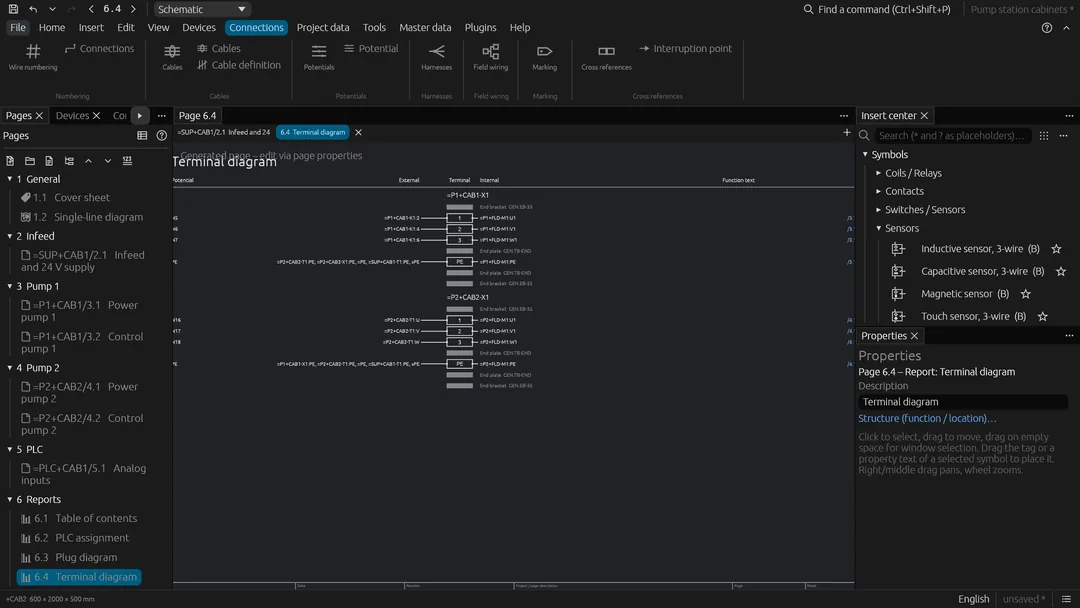
Table of contents, device list, bill of materials (with parts and prices), terminal diagram, connection list, PLC assignment list, potential overview, cable overview, cable diagram — in a window, as CSV export, or inserted as live report pages.
The filter of the Reports pane finds a report by its title, its name or the
standards it follows, ignoring case, spaces and dashes: VDE 0100 600, 0100-600 or
IEC 60364-6 find the three inspection and test reports, ISO 13849 the safety
functions, 60909 the short circuit report (list_reports with search on the
command line).
Cable sold by metre needs a positive length for its material quantity. A missing
length is shown as ?; if other cables of that article have lengths, the row
shows the known quantity plus ?. Prices and the report sum also indicate the
unknown portion. The cable check names each metered cable needing a length.
Cable counted by piece keeps its one-piece quantity when no length is supplied.
Cable parts may supply Outer diameter: 6.3 mm in their technical data. Selecting
the part applies this dimension to routing; a part without a valid dimension
returns to the estimate from its cores and section. apply_cable_part exposes the
same catalog operation through the shared command registry.
The cable picker includes project-local parts as well as the configured catalog;
local metadata and classifications take precedence for repeated article numbers.
list_cable_parts exposes the project and built-in choices to plugins and CLI/MCP.
Forms
Title blocks are lists of lines, rectangles, texts with placeholders
({project}, {page}, {sheet}, {page.previous} / {page.next}, {rev.date},
revision tables with {rev.1.name}, {rev.2.name} …, user properties {prop:Name} …)
and images, edited in the title block editor and shared as files; one per project with an
override per page (built-in: Standard, Compact, None). Texts can be bold, italic and
rotated (e.g. 90° for texts running upwards). An image element keeps its own picture
(PNG, JPEG, e.g. the company logo, travelling with the title block file) or shows the
project logo of Project properties › Logo (e.g. the customer's, different in every
project), fitted into its rectangle with its aspect ratio; the cover page shows the
project logo above the project name or at a place of its own (Project properties ›
Logo on the cover page, set_cover_logo). Drawn report forms take the same elements.
Every element can be limited to pages of some types (e.g. a field only on report
pages) or to a filled placeholder (e.g. the second row of a revision table only with
{rev.2.name}); lines, rectangles and texts get their own colour, lines and rectangles
dashes. QR codes encode a text with placeholders (e.g. a link to the project in the
document management with {project} and {page}). The title block of a page is its
own, else the one of its page type (Title block by page type), of its plot frame
(e.g. a narrower one for A4 portrait), the project default. {rev.status},
{rev.approved_by} and {rev.approved_date} show the state of the revision workflow
and who approved the last revision.
Stamp: a large text across every page that follows the revision workflow, e.g.
DRAFT while a revision is prepared, FOR APPROVAL in review, nothing (or AS BUILT) when
released (Forms › Title blocks › Stamp, set_stamp).
Company library: the project's own title blocks, report schemes and plot frames are
published to the parts server and loaded into other projects (Title blocks › Company
library, parts_company_forms (publish); publishing needs the
right to edit catalogs). Report forms choose the columns, their order, the heading and
the rows per report page, the alignment of each column, columns summed in a total row
below the last row (with the unit of their values) and shaded every second row.
Graphical forms: a report form of the terminal, cable or plug diagram or the PLC
assignment can switch to its graphical form – the strip drawn with a box per terminal (levels marked), end
brackets and end plates, jumper bridges and the external and internal targets with
potential, function text and linked location; or each cable as a band with its cores
from end to end (potential, wire number, reserve cores dashed); the plug diagram as
a housing with socket and pin half per pin; the PLC assignment as a module per card
with the inputs coming in from the left and the outputs going out to the right.
Drawn forms: any report (also those of plugins) can be drawn with an own form –
graphics drawn once per page and a row drawing repeated for every row, downwards for
lists or sideways (e.g. one terminal beside the other); its texts take the columns as
placeholders ({Device tag}, {Part number} …), {report} and the title block
placeholders. The form editor (Report forms › Own drawn form) starts from the
report's table and shows the page with its real rows while lines, rectangles and
texts are added and dragged.
Project check
Aux functions without main function, duplicate main functions,
open connection points, unpaired interruption points, short circuits between
potentials, duplicate terminal numbers / PLC addresses, devices without part, more wires
at a connection point than its clamp takes or wires too thin or too thick for it (check
Wires at connection points, by the connection point data of the parts, e.g. from EDZ
files).
Message management (in the spirit of EPLAN's check schemes): every message has
a code per kind (wires.3f9a1c, the same in every language) and a fingerprint per
occurrence. Right click a message in the Messages pane to accept it as checked (hidden
and not counted until it changes), to change the level of its kind (error, warning,
note, off) or to switch its check off; the settings (⚙) list the checks, changed
levels and accepted messages (with note, user, date and whether they are still
reported). The tab filters by level, page and text and exports the messages as CSV.
The settings are stored with the project; the checks switched off and the changed
levels are exchanged as a check scheme file (JSON) between projects. Commands:
list_checks, check_settings, set_check, set_message_level, accept_message;
tools export_check_scheme, import_check_scheme; check shows codes and
fingerprints.